WooCommerce My Account Not Showing Orders? 5 Fixes
Orders missing from the WooCommerce My Account page? Check these 5 common causes, from guest-checkout email mismatches to caching.
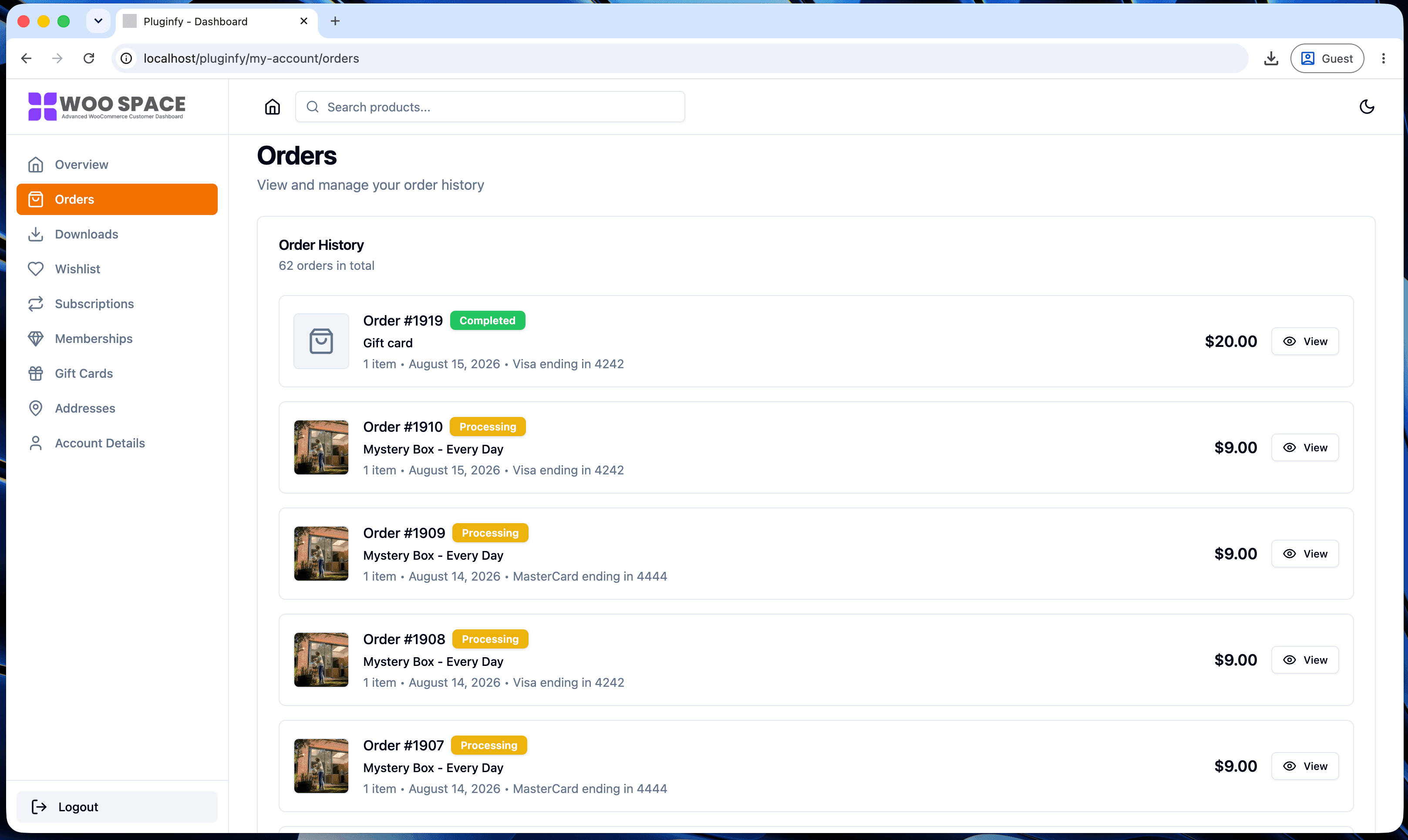
"Orders not showing in My Account" is one of those problems that feels urgent because it usually is - a customer can't see an order they definitely placed, and support is about to hear about it. Here are the five most common causes, in the order worth checking them.
1. The account isn't actually linked to the order
By far the most common cause. WooCommerce ties an order to a customer account by user ID, not by matching email addresses after the fact. If a customer checked out as a guest, then later created an account using the same email, WooCommerce doesn't retroactively link that guest order to the new account - it stays associated with "guest" unless something explicitly links it.
Check: open the order in wp-admin (WooCommerce → Orders) and look at the "Customer" field. If it says "Guest" instead of a linked account, that explains a missing order regardless of anything else on this list.
Fix: edit the order and set the Customer field to the correct account, or ask the customer to check the guest-checkout email for an order confirmation with the details.
2. Page caching is serving a stale, empty account page
Full-page caching plugins (and some CDNs/host-level caches) sometimes cache the My Account page itself, or a stale version of it, and serve that same cached HTML to every logged-in visitor - including one with zero orders baked into the cached markup.
Check: open the account page in an incognito window right after placing a test order. If it still shows no orders there but the order exists in wp-admin, caching is the likely culprit.
Fix: exclude /my-account/ (and its sub-pages) from page caching -
every caching plugin has a URL exclusion setting for exactly this. Account
pages should never be cached since their content is per-user by
definition.
3. A template override is out of sync
If your theme has a copied orders.php template (see our guide to
overriding WooCommerce templates safely),
an older or broken copy can render nothing where the order list should be
- either because the query logic changed upstream, or because a manual edit introduced a bug.
Check: temporarily rename or move
yourtheme/woocommerce/myaccount/orders.php out of the way. If orders
reappear using WooCommerce's own template, your override is the problem.
Fix: re-copy the current version of the template from the WooCommerce plugin and reapply your customizations, rather than patching the old copy further.
4. HPOS migration issues
WooCommerce's High-Performance Order Storage moves orders into dedicated database tables instead of the old post-based storage. Stores that migrated (or that have plugins still reading/writing orders the old way) can end up with orders that exist in one storage system but aren't synced to the other - which shows up as orders that exist in wp-admin but don't render correctly on the front end, or vice versa.
Check: WooCommerce → Settings → Advanced → Features shows your current HPOS status and sync state. See WooCommerce's own HPOS documentation for how compatibility mode and syncing work.
Fix: if sync is incomplete, WooCommerce's own migration tools (in that same settings screen) handle re-syncing - don't attempt to move order data manually between the two storage systems.
5. A broken custom endpoint hook
If someone previously customized the orders endpoint - see our custom
tab tutorial for how that
hook works - a bug in a
woocommerce_account_orders_endpoint callback (or a conflicting plugin
hooked to the same action) can override or blank out the default order
list rendering.
Check: deactivate custom plugins/snippets one at a time (or check
add_action( 'woocommerce_account_orders_endpoint', ... ) calls in your
theme/plugin code) to isolate whether something is intercepting this hook.
Fix: remove or fix the conflicting callback. If you need custom
content alongside the default order list rather than instead of it, hook
into woocommerce_before_account_orders or
woocommerce_after_account_orders instead of replacing the endpoint
callback entirely.
Diagnostic checklist
- Open the order in wp-admin - is it linked to the right customer account?
- Load the account page in an incognito window - still missing?
- Temporarily disable any
orders.phptemplate override - Check WooCommerce → Settings → Advanced → Features for HPOS sync status
- Deactivate custom plugins/snippets touching the orders endpoint
Work through these in order - the first two catch the large majority of cases, and each subsequent check assumes the ones before it are ruled out.
If you're chasing this kind of bug often enough that it's worth a structural fix rather than repeated troubleshooting: NextDash's order view reads orders directly rather than depending on a template file your theme maintains, so template drift specifically (cause #3 above) isn't something that can happen to it.
FAQ
Why does this only happen for some customers, not all? Because the causes are mostly per-order or per-account (guest/account mismatch, a specific order's HPOS sync state) rather than site-wide - a site-wide cause like caching or a broken template usually affects every customer at once, while an account-linking issue only affects the orders placed that way.
Is this a WooCommerce bug? Rarely. In most cases WooCommerce is behaving correctly given the data it has (a guest order really isn't linked to an account unless something links it) - the "bug" is usually a caching or customization issue layered on top, not WooCommerce's own order-matching logic.
Could a plugin conflict cause this? Yes - any plugin hooking into the same action WooCommerce uses to render the orders endpoint, or a plugin that alters the orders query, can cause this. Deactivating plugins one at a time (checklist item 5) is the fastest way to isolate it.
Skip the custom code — install NextDash
NextDash replaces the default WooCommerce My Account page with a modern React dashboard out of the box: order management, downloads, addresses, dark mode, and fast client-side navigation, no template overrides required.