How to Add a Custom Tab to WooCommerce My Account
Step-by-step: register a WooCommerce My Account endpoint, add it to the menu, and render custom tab content with working PHP code.
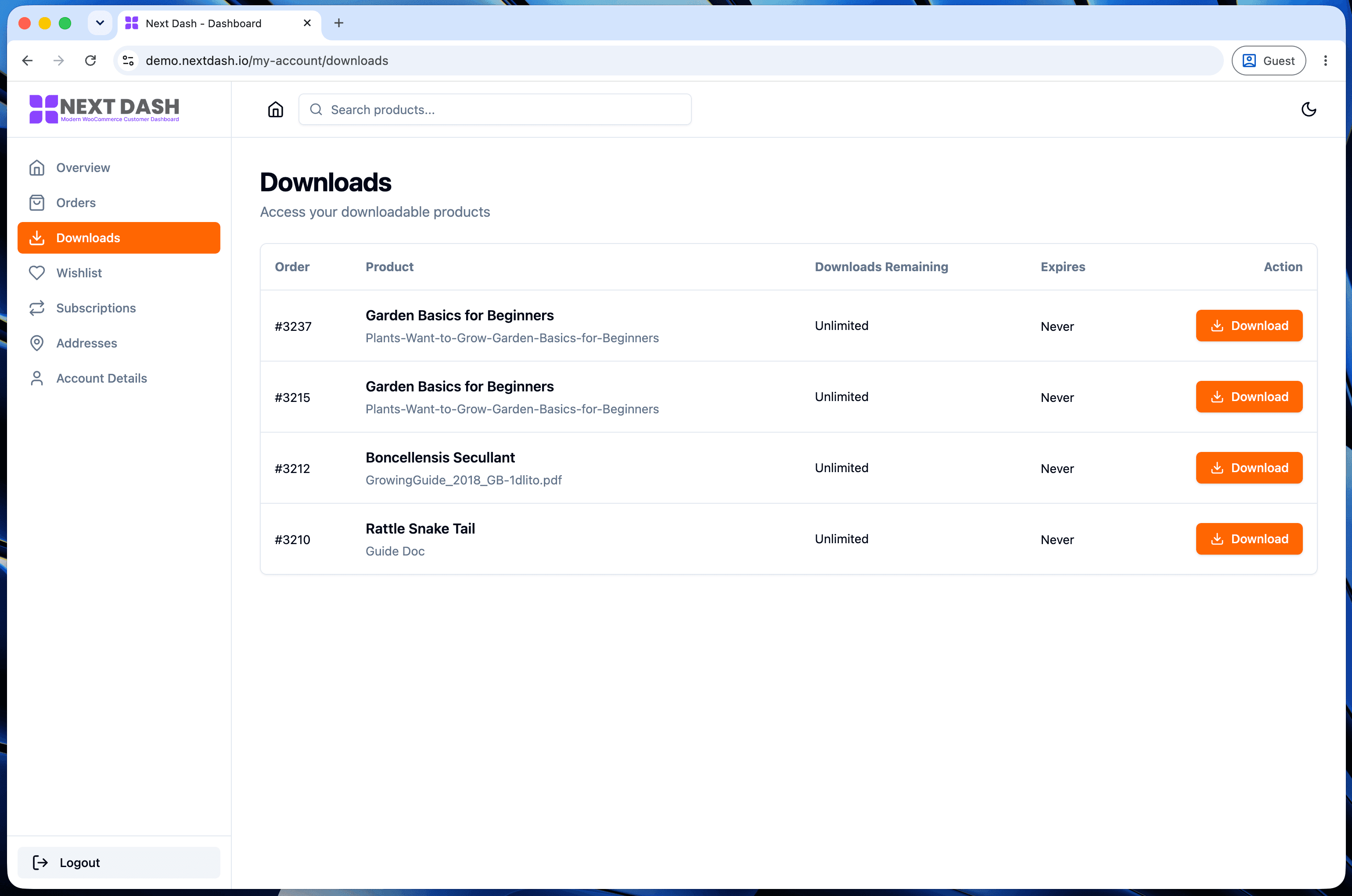
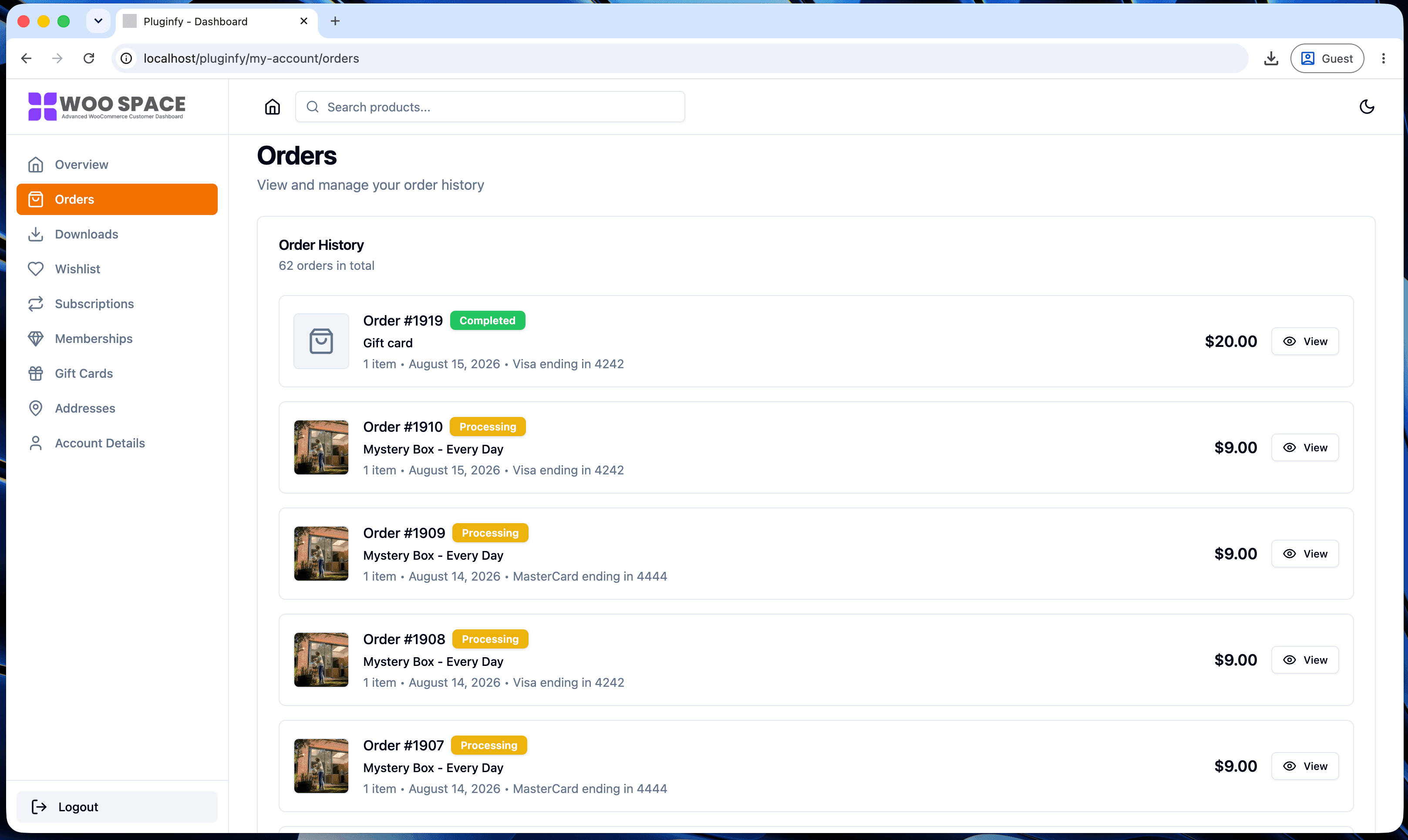
Every tab on the WooCommerce My Account page - Orders, Downloads, Addresses - is a rewrite endpoint, not a separate WordPress page. Adding your own tab (loyalty points, a referral program, subscription status) means registering one the same way. It's four small pieces wired together, and missing any one of them is why "my custom tab 404s" is such a common question.
Why tabs = rewrite endpoints in WooCommerce
WooCommerce's My Account page lives at a single URL, /my-account/. Each
tab is actually a query variable on that same URL -
/my-account/orders/, /my-account/downloads/ - handled by WordPress's
rewrite endpoint system rather than by separate pages. That's why adding a
tab always needs the same four pieces: register the endpoint, add it to
the menu, render its content, and (optionally) set its page title.
Step 1: Register the endpoint
add_action( 'init', function () {
    add_rewrite_endpoint( 'loyalty-points', EP_ROOT | EP_PAGES );
} );
EP_ROOT | EP_PAGES tells WordPress to recognize this endpoint both at
the site root and on any page - which covers the My Account page
regardless of what it's called or where it lives in your site structure.
See WordPress's own add_rewrite_endpoint() reference
for the full list of EP_* mask constants if you need something more
specific than "everywhere."
Step 2: Add it to the menu
add_filter( 'woocommerce_account_menu_items', function ( $items ) {
    $items['loyalty-points'] = __( 'Loyalty Points', 'your-textdomain' );
    return $items;
} );
The array key (loyalty-points) has to match the endpoint name exactly -
this is the single most common typo that breaks a custom tab. The value is
just the label shown in the navigation.
Step 3: Render its content
add_action( 'woocommerce_account_loyalty-points_endpoint', function () {
    $points = get_user_meta( get_current_user_id(), 'loyalty_points', true ) ?: 0;
    printf(
        '<p>You have <strong>%d</strong> points.</p>',
        esc_html( $points )
    );
} );
The hook name follows a fixed pattern:
woocommerce_account_{endpoint}_endpoint. Whatever you echo or print
inside this callback becomes the tab's content, rendered inside
WooCommerce's existing account content wrapper.
Step 4: Set the page title (optional but recommended)
Without this, the browser tab and page <title> fall back to something
generic. Set it explicitly:
add_filter( 'woocommerce_endpoint_loyalty-points_title', function () {
    return __( 'Loyalty Points', 'your-textdomain' );
} );
Common mistake: forgetting to flush permalinks
add_rewrite_endpoint registers the endpoint in code, but WordPress only
picks up new rewrite rules when its rewrite cache is rebuilt. After adding
a new endpoint, go to Settings → Permalinks and click Save (no changes
needed, just visiting that screen and saving triggers a flush). Skip this
step and the new tab's URL 404s even though the code is correct.
Making the tab look native
To match WooCommerce's own tabs instead of looking like a plain HTML block, wrap your content in the same markup structure WooCommerce uses:
add_action( 'woocommerce_account_loyalty-points_endpoint', function () {
    echo '<div class="woocommerce-MyAccount-content">';
    // your content here
    echo '</div>';
} );
This class is what most themes already style (padding, typography, spacing to match the rest of the account page) so you inherit that styling instead of rebuilding it.
When several custom tabs start adding up
One custom tab is a few hours of work. Three or four - each with its own endpoint, menu filter, render callback, and page title - starts looking like a maintenance project, especially once you're also keeping them working across WooCommerce updates. NextDash's order management dashboard and downloads center are the same idea as the loyalty-points tab above, just built in and configured from settings instead of hand-registered - new sections get added through developer hooks rather than repeating steps 1-4 from scratch each time.
For the full picture of what else is customizable this way - menu reordering, template overrides, CSS - see our WooCommerce My Account customization guide.
FAQ
Can I add a custom tab without writing code? Not with stock WooCommerce - rewrite endpoints are a code-level feature. Some My Account replacement plugins expose custom sections through a settings screen instead; that's a different approach, not a code-free way to do the same rewrite-endpoint technique.
Can I hide a custom tab for certain user roles?
Yes - check the role inside the same woocommerce_account_menu_items
filter before adding the item:
add_filter( 'woocommerce_account_menu_items', function ( $items ) {
    if ( current_user_can( 'loyalty_member' ) ) {
        $items['loyalty-points'] = __( 'Loyalty Points', 'your-textdomain' );
    }
    return $items;
} );
Also guard the render callback the same way, since a determined user could still hit the endpoint URL directly even with the menu item hidden.
Skip the custom code — install NextDash
NextDash replaces the default WooCommerce My Account page with a modern React dashboard out of the box: order management, downloads, addresses, dark mode, and fast client-side navigation, no template overrides required.