NextDash Dark Mode & Theming for WooCommerce My Account
Dark mode and full brand theming for the WooCommerce My Account page, configured from a settings screen, no CSS needed.
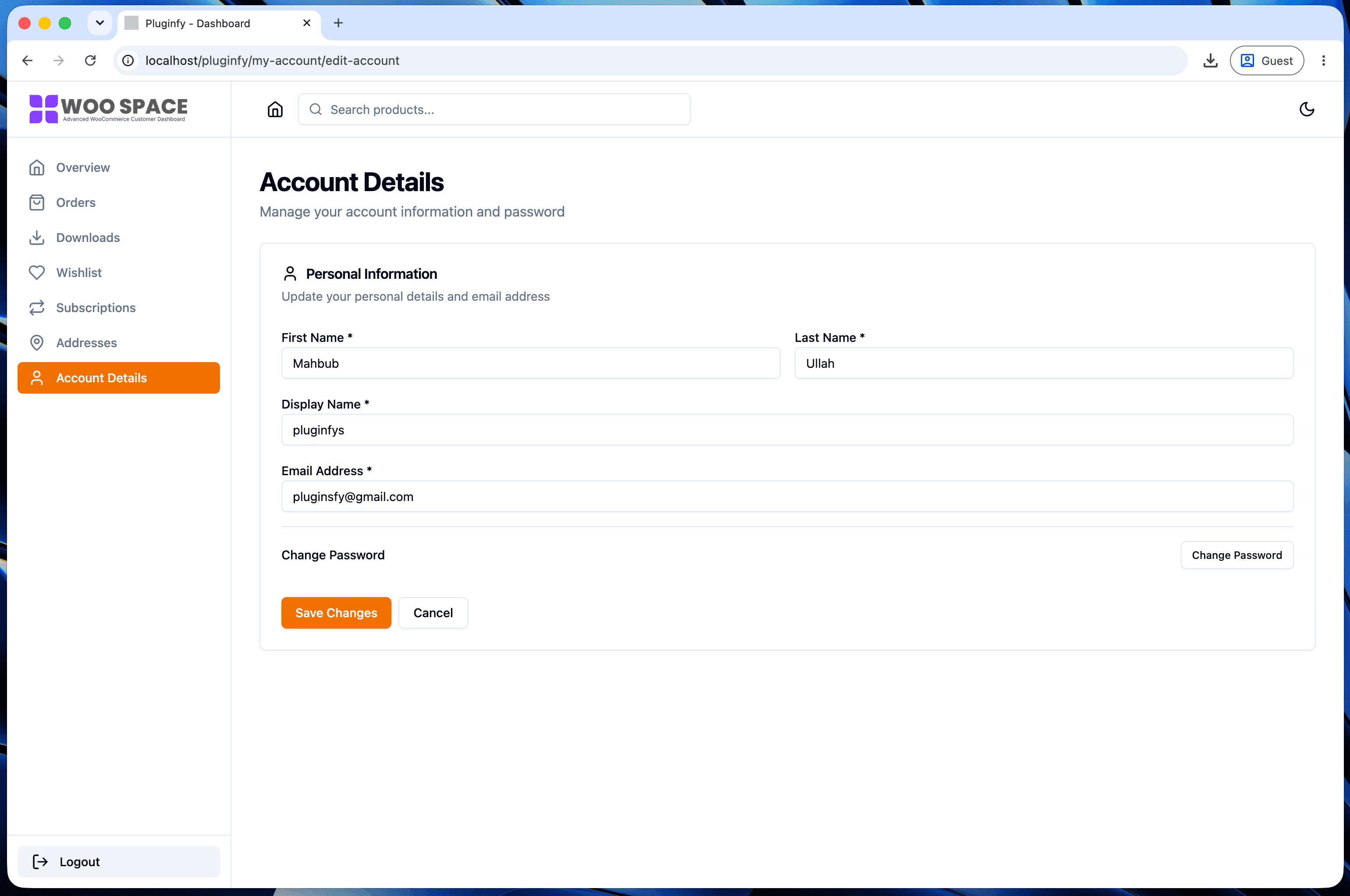
Dark mode isn't a cosmetic afterthought on an account page - it's a screen customers check at all hours, often in the evening after placing an order earlier that day. Getting it right (and getting the rest of the account area's branding right alongside it) matters more than it might seem for a "just a color scheme" feature.
Why dark mode on My Account matters
Order-checking and account management don't happen on a 9-to-5 schedule. A customer tracking a package or double-checking a subscription renewal is just as likely to do it at 11pm as at noon - and a bright white account page at night is a worse experience than the rest of a well-designed site would suggest. Session length and time-of-day usage patterns on account pages specifically make this more than a nice-to-have.
How NextDash implements it
NextDash's dark mode follows the same technically correct pattern covered in our DIY dark mode tutorial
- system-preference detection on first visit, a manual toggle that persists the choice, and no flash of the wrong theme on page load. The difference is it's already built: light, dark, or system mode, working across every dashboard screen without wiring up the token system, persistence logic, or flash-prevention script yourself.
Brand theming beyond dark mode
Dark mode is one setting among several. Primary color, logo, and typography are configurable from NextDash's settings screen - no CSS, no theme file edits. This matters distinctly from dark mode itself: a store's brand color needs to look right in both light and dark variants, not just toggle between two generic themes. Settings-based theming handles that consistently rather than requiring separate CSS for each mode.
Who this saves the most time for
- Agencies managing multiple client stores - each client's brand color and logo configured per-site from settings, without maintaining separate CSS per client
- Non-technical store owners - getting a properly implemented dark mode (token-based, no flash, persisted) without writing or hiring for the CSS and JS covered in our DIY tutorial
For readers who want to understand the underlying implementation - useful even if you end up using NextDash's built-in version - that tutorial walks through exactly what's happening under the hood.
FAQ
Can I set a different primary color per client site if I manage several? Yes - theming is configured per installation from the settings screen, so each site's branding is independent.
Does dark mode apply to every dashboard screen, or just some? Every screen - orders, downloads, addresses, and any other section all respect the same theme tokens, so there's no inconsistency between sections.
If I've already built a custom dark mode following the DIY tutorial, is there a reason to switch? Only if you'd rather not maintain it going forward - a correctly built custom implementation and NextDash's built-in one work the same way technically. The difference is ongoing maintenance, not capability.
Skip the custom code — install NextDash
NextDash replaces the default WooCommerce My Account page with a modern React dashboard out of the box: order management, downloads, addresses, dark mode, and fast client-side navigation, no template overrides required.